Carousel with slides shown at a time. Use the Previous and Next buttons to navigate.
GLS Live Tracking
Track your parcel in real time
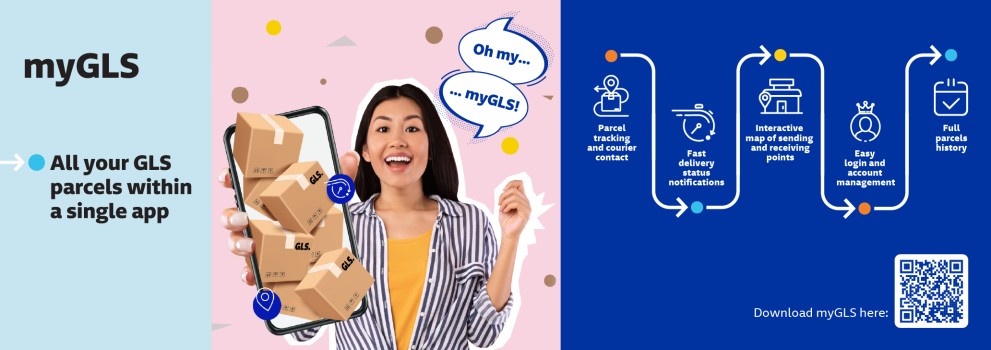
-


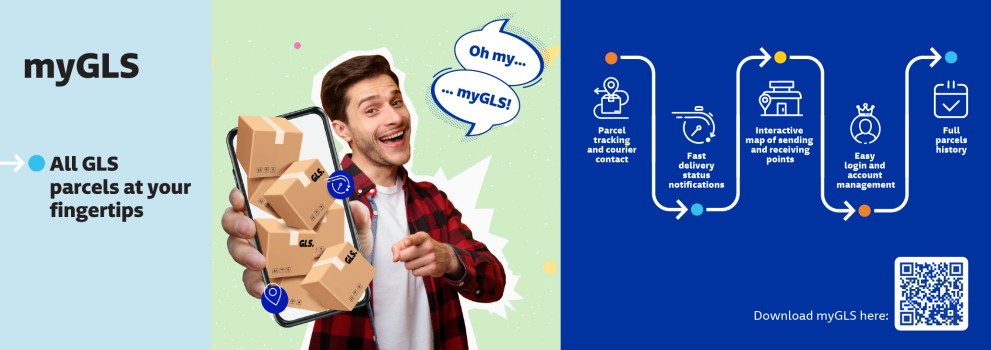
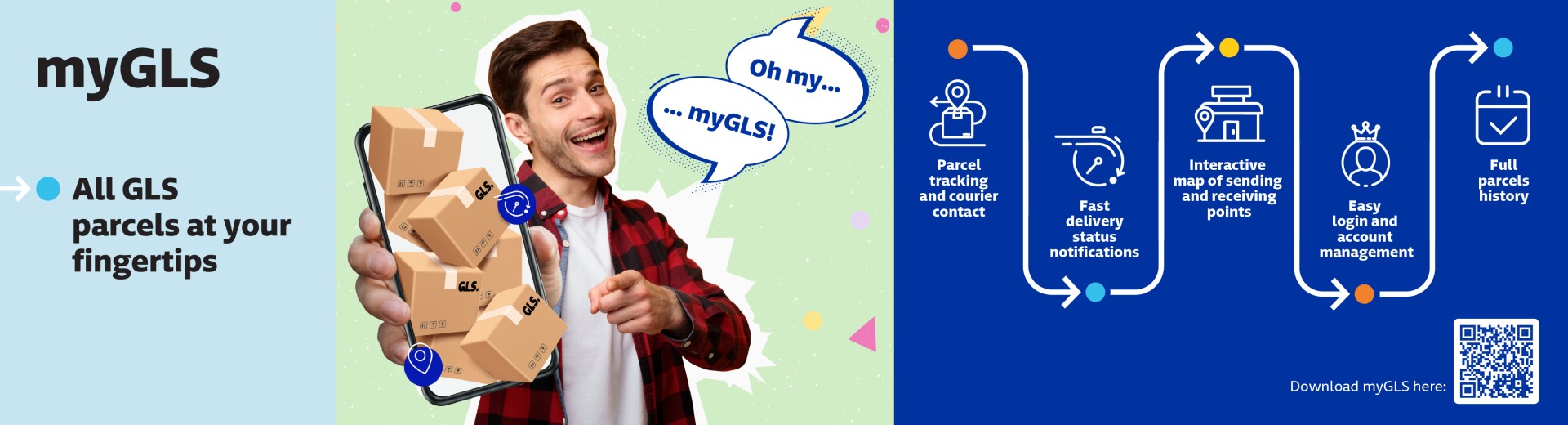
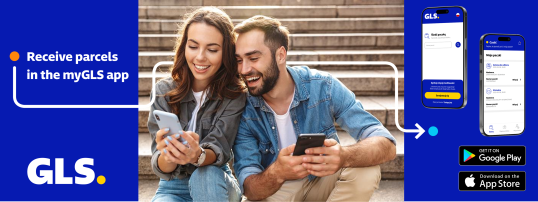
Track your parcels
Track your parcel live in real time with GLS Live Tracking. -

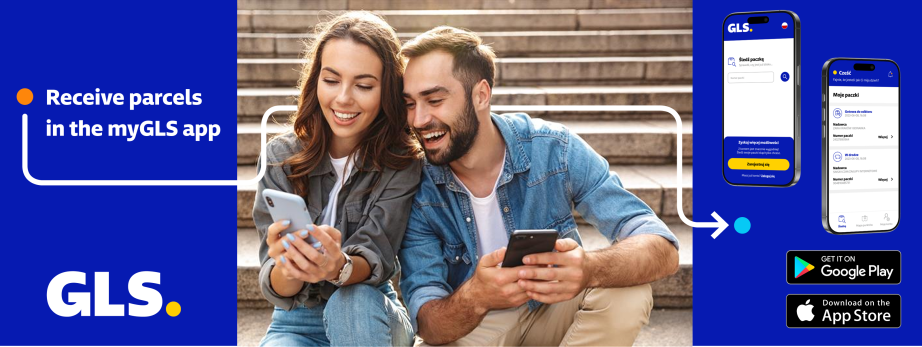
Pick up at the parcel locker
Pick up your parcels conveniently, where and when you want to -
Manage your account
Full control over your packages in one place -
Get in touch with us
Have questions? Call the courier
What’s new in our app
In the latest update, we’ve added features requested by users – making it even easier to manage your parcels and deliveries.
📦 Sharing a parcel with others
You can share a parcel with someone of your choice – such as a family member or colleague – so they can also track its status and manage the delivery.
🚚 Redirecting a delivery
In certain cases, you can go directly to the delivery change options and redirect the parcel to a different address.
🔍 Manually adding parcels to your watchlist
You can now manually add a parcel number to your list and conveniently track its status directly in the app.
✏️ Custom parcel names
Give your parcels custom names, e.g. “Secret”, “New shoes” or “Dream screwdriver”, to find them more easily.
🗑 Removing parcels from the list
The app now also allows you to easily remove parcels from the list, helping you keep your parcels organised.
Don’t have the myGLS app yet?
Download it and manage your parcels conveniently in one place.
Already using the app?
Take a moment to rate it in the app store ⭐.
Your feedback is very important to us – it helps us develop the app and introduce new features that users really need.
Live Tracking is coming to the myGLS app!
Discover a unique opportunity to track your parcel in real time
From now on, our customers can track their parcels live in the myGLS app – just like they already do with the Live Tracking link in their emails. Only now it's more convenient, at their fingertips, in one app. 💙
This is a significant improvement – especially now, when there are more parcels and everyone wants to know exactly when to expect delivery to their door. 🎁✨
And how does it look on the screen?
Main screen – list of parcels
When a parcel has the status ‘In delivery’, a Live Tracking panel appears under its entry.
This is where the recipient can access live courier tracking.
Parcel details
Live Tracking can also be launched from the shipment details.
Just click the ‘Track on map’ button – the app will then open the tracking panel and show what is happening on the route.
👉 When the courier still has more than 20 stops to make, the app displays a yellow panel with information that the courier's location will only appear when they are closer.
But the recipient can already see:
the estimated delivery time,
how many stops are left,
an animated progress bar,
e ‘Refresh delivery time’ button,
the option to rate the function ⭐.
Everything refreshes automatically when you enter the panel.
👉 When there are less than 20 stops left
Then the real LIVE begins – the courier appears on the map 🚚✨.
You can see:
their current route,
the recipient's home,
a parcel icon that moves across the map in real time,
a countdown of minutes and stops to the destination.
When the courier is right outside the door
The app shows the last part of the route – from the final stop straight to the recipient's home.
This is the moment: ‘Oh, they're here!’
Remote opening of lockers
Our app now has a new feature that changes the way you receive parcels – remote locker opening! 🔓📱
From now on, you can open your locker with a single click in the app – no need to rewrite the code, search for an SMS or touch the panel.
Just click ‘Open locker remotely’ and... you're done!
It's a small thing, but a big change for users:
- ✨ Collection takes literally seconds – you can open the locker before you even get to it, e.g. from the car park or your car.
- ✨ More convenient – everything in one place, in the app.
- ✨ More modern – an intuitive solution that increases satisfaction with our services.
The app also shows exactly how much time is left to collect the parcel – the user always knows how long the parcel will be waiting in the machine.
For the function to work smoothly, all you need is location enabled, internet access and to be within range of the locker.
Following the introduction of features such as opening the locker with a QR code, automatic login and autocomplete for the verification code, remote locker opening is a natural addition – even simpler, faster and more intuitive.
More about the myGLS app
Account management
1 Where can I download the myGLS app?
The myGLS app runs on two operating systems: Android and iOS. You can download it from the Google Play store and the App Store.
2. Can I set up multiple accounts for one phone number?
The myGLS app allows you to create only one account registered to a given phone number.
3. Can I link my account to a company account or another GLS account?
Currently, the myGLS app does not offer the ability to link different types of accounts. Each account in the application functions independently and is linked to a single phone number.
4. No SMS with verification code for account registration?
Check that the phone number you entered is correct, then make sure your phone has mobile network coverage. Use the “Send again” option to receive a new verification code and complete the account registration process.
5. Can I change my phone number in the app?
Unfortunately, the myGLS app does not allow you to change the phone number on an existing account. The phone number is a key element used during registration and login, so changing it would require re-registering for a new phone number.
6. What if I forget my login password?
Click the “Forgot your password?” button, enter the phone number used during registration, and then enter the verification code received by SMS to set a new password.
7. What if my account has been blocked after several unsuccessful login attempts?
If unsuccessful logins to the application occur at least 15 times, the account is blocked for a few minutes. Before the expiration of this time, you can remove the lock by resetting your password by clicking on the “Forgot your password?” option.
8. Can I change the language of the application?
After logging in to the application in the “My Account” tab, you will find an option to change the application language. You can choose your preferred language from the available list. A non-logged-in user can also change the application language by making a language change on the home page.
9. no email with verification code?
Remember that the verification code to link your email address to your account in the app is valid for 10 minutes. Check to see if the email has gone to the spam folder. If the email still does not arrive after this time, use the “Resend” option.
10. Where can I find information about the processing of my personal data?
Detailed information about the processing of your personal data, including the scope of data collected, the purposes of processing, and your rights, can be found in the Privacy Policy available in the app under “My Account” in the “Consents and Terms and Conditions” section or on the official GLS website.
11. How can I completely delete my account from the myGLS app?
To delete your account from the myGLS app, go to the “User Account” section and then select the “Delete Account” option. The system will ask you to confirm this decision by entering your password. Before finally deleting your account, you will be informed of any consequences, such as losing access to your parcel history and saved preferences. Once the process is approved, your account along with all your data will be permanently deleted from our system.
Application features
1. How can I track my parcels in the app?
If you’re logged in, go to the ‘Tracking’ tab. The parcels displayed in the app are linked to the phone number you used when registering and to one or more email addresses (if you have linked them to your account). You can also add a parcel to your account manually. If you are not logged in, enter the parcel number in the field provided on the app’s home screen and search for the parcel.
2. How do I manually add a parcel to my account?
On the home screen, select “Track a new parcel”, then enter the parcel number. The parcel will be added to your list and you’ll be able to track its status directly in the app. However, if the parcel is not linked to the phone number or email address saved in your account, some information may not be visible, and the available parcel management options may be limited.
3. I still haven’t received my parcel – what should I do?
First, check its current status in the myGLS app. If you need further assistance, go to the ‘Account’ tab, then ‘Contact and Help’, and contact the GLS Helpline by any means.
4. Why can’t I see my parcel in the app?
In the app, you can track parcels linked to your phone number or email address, provided they have been assigned to a shipment. Some parcels may not appear in the app if they were sent via e-commerce platforms that anonymise the email address, and the recipient’s phone number has not been provided. In such cases, we cannot link them to your account.
5. Can I redirect my parcel using the app?
In certain cases, the ‘Change delivery’ option is available in the parcel details. After clicking on it, you can choose how to redirect it, e.g. to a parcel locker, a GLS Point or a new address.
6. Why can’t I redirect my parcel?
The option to change the delivery is limited by the stage the parcel is at. Once it has been handed over to the courier for delivery, no further changes can be made.
7. How can I share my parcel with someone else?
In the parcel details, you will find the “Share” option. Once selected, you can choose the person you wish to share the parcel with. The recipient will be able to track its status, access the courier’s phone number, track the courier on a map, view the collection code, or remotely open the parcel locker.
8. Who can I share my parcel with?
You can share your parcel with anyone – for example, a family member, a neighbour, a colleague, or someone who will collect it on your behalf. If necessary, you can grant access to several people at the same time.
9. Can the person I share the parcel with change the delivery options?
No, only the parcel owner can make changes to the delivery.
10. Can I use the app to remotely open a locker in a parcel machine?
The remote locker opening feature is available in the app for parcels marked as ‘Ready for collection’.
10. Can I use the app to remotely open a locker in a parcel machine?
The remote locker opening feature is available in the app for parcels marked as ‘Ready for collection’.
11. What should I do if remote locker opening isn’t working?
Possible causes:
• location services not enabled on your phone,
• too far away from the parcel locker,
• no internet connection,
• a technical issue with the locker.
In this situation, scan the QR code or use the PIN code shown in the app.
12. How do I find the nearest collection or drop-off point?
In the “Map” tab, you can search for GLS Points and parcel lockers by entering a name, address or town, and using the available filters. The search results will be displayed on the map. Clicking “Get directions” will show a route on the map that will take you to the selected point.
13. Can I give my parcel a custom name?
In the parcel details, you’ll find the “Change name” option. You can enter any name, e.g. “New shoes”, “Gift”, “Documents”, to make it easier to find.
14. Will the parcel name also change for the sender or courier?
No, the parcel name is only visible to you in the app and is not shared with either the sender or the courier.
15. How do I remove a parcel from the list?
Select the parcel from the list and click ‘Delete’. This will only remove the parcel from your view – it does not affect its delivery or status.
16. Can I restore a parcel after deleting it?
Yes, add it manually using the ‘Track new parcel’ function.
17. Can I contact the Helpline via the app?
In the “Account” tab, under “Contact and Help”, you will find the Helpline’s contact details, including a phone number and email address. You can also use the contact form.
18. How long does it take for my parcels to be archived?
Each parcel is automatically archived 48 hours after receiving a delivery status. However, you can manually move a parcel to the archive or restore it to the parcel list at any time.
19. How long are notifications kept in the inbox?
Notifications remain valid for 30 days and are stored in the inbox for that period.
20. Why am I not receiving push notifications?
Check your notification settings in the app under ‘Settings’, then ‘Notifications’, and in your phone’s system settings. Make sure the app is running in the background.
21. Can I send parcels via the app?
Currently, the parcel posting and shipping label generation features are not available in the myGLS app. We plan to introduce this functionality in future updates.
22. Does the app contain any paid premium features?
All features of the myGLS app are completely free and available to every user upon registration. We do not currently offer any paid versions or additional premium features – our full range of features is available to all users at no extra cost.
Technical issues
1. No shipment status update?
Refresh the screen by swiping up and check if you have an active Internet connection. It's also a good idea to close the app, restart it and clear the cache in the settings. If that doesn't help, try again in a few minutes.
2. The app incorrectly determines my location when searching for points. What can I do?
If you are having problems with location accuracy, check if the myGLS app has location access privileges in your phone's settings. Make sure the GPS is turned on and working properly. Try going out into an open space to improve GPS signal reception. If you continue to have problems, try restarting your phone or manually entering the address you are looking for instead of relying on automatic localization.
3. The app is running late today?
Check your Internet connection speed, close other apps running in the background, and clear the app cache in your phone's settings. This will make the app run smoothly.
4. The application uses a lot of battery?
To reduce your phone's battery consumption, make sure the app is up to date, turn off its background operation and unnecessary notifications, and then restart the device. If the problem persists, contact our Hotline via the “Contact and Support” tab.
5. How do I check if I have the latest version of the app?
In the App Store or Google Play, search for the myGLS app and check if the “Update/Update” option is available, if not - you are using the current version of the app.
6. The app displays the error “No connection to the server”?
If the application displays a “No connection to the server” error, check your device's Internet connection, turn on and off airplane mode, close and restart the application and clear its cache.
7. The application does not work offline?
The app requires an active Internet connection to work properly, and if you lose it, you will see a message about no network access. Check your Wi-Fi or mobile data settings, switch between Wi-Fi and mobile data, and restart the app after the internet connection is restored.